


PowerPoint transitions can make a presentation feel smooth and professional — or distracting and chaotic. But, they are a quick and easy way to add motion to your slides, without the need for animating individual elements.
In this guide, we’ll show every transition available in Microsoft PowerPoint, explain what each one does, and help you decide which effects are actually worth using.
Whether you’re creating a business presentation, school project, or animated slideshow, this list will help you choose the right transition quickly.
Complete List of PowerPoint Transitions
For a description of each transition, scroll down.
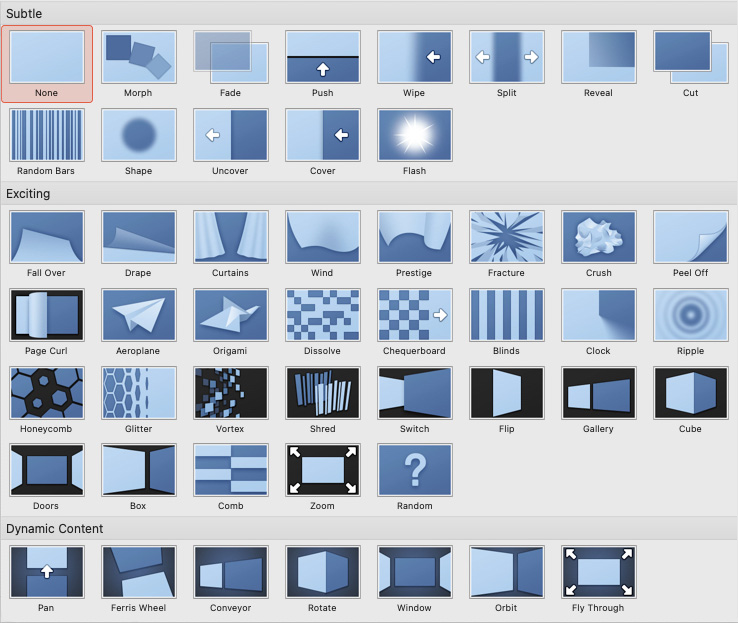
Subtle Transitions
Exciting Transitions
- Fall Over
- Drape
- Curtains
- Wind
- Prestige
- Fracture
- Crush
- Peel Off
- Page Curl
- Airplane
- Origami
- Dissolve
- Checkerboard
- Blinds
- Clock
- Ripple
- Honeycomb
- Glitter
- Vortex
- Shred
- Switch
- Flip
- Gallery
- Cube
- Doors
- Box
- Comb
- Zoom
- Random
Dynamic Content Transitions
- Pan
- Ferris Wheel
- Conveyor
- Rotate
- Window
- Orbit
- Fly Through
How to Add a Transition in PowerPoint
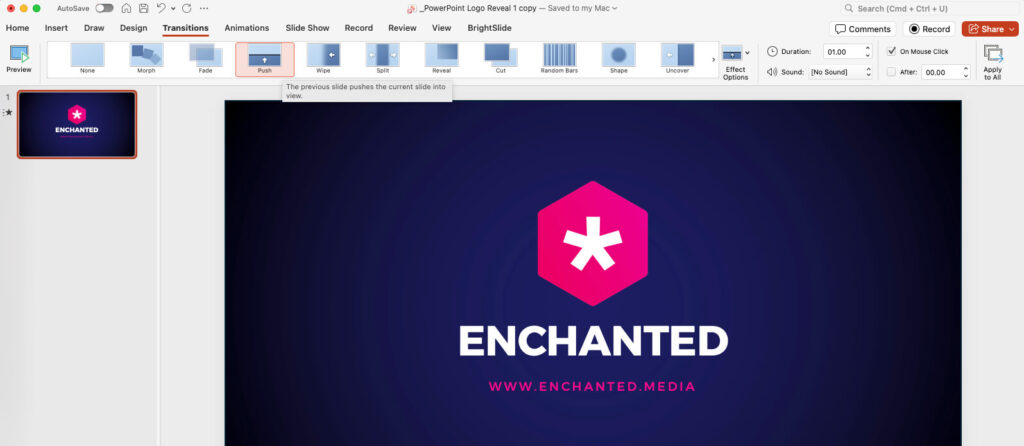
- Select a slide
- Open the Transitions tab
- Choose a transition
- Click Effect Options to customize the direction or style
- Adjust duration if needed
- Click Preview
You can also apply the same transition to every slide using Apply To All.
How to Remove Transitions in PowerPoint

To remove a transition in PowerPoint, select the slide, open the Transitions tab, and choose None from the transition gallery. This removes the animation effect between slides. If you want to remove transitions from the entire presentation, select a slide with None applied and click Apply To All.
The Best PowerPoint Transitions for Professional Presentations
Most professional presentations only use one or two transitions consistently.
These are the safest and most modern options:
Fade

Tooltip:
“The previous slide fades away, revealing the current slide.”
Best for:
- business presentations
- academic presentations
- minimal slide decks
Morph

Tooltip:
“Move things on the previous slide to their new locations on the current slide.
To get the best results:
1. Duplicate the slide.
2. Move things around.
3. Apply the Morph transition.
Anything you add or delete will fade in or out.”
Morph is an extremely powerful tool that enables creative and elaborate movement between slides and elements. We will cover the Morph transition in more detail in future posts.
Best for:
- cinematic presentations
- smooth animations
- modern storytelling
Push

Tooltip:
“The previous slide pushes the current slide into view.”
Effect Options:
- From Left
- From Right
- From Top
- From Bottom
Best for:
- timelines
- step-by-step walkthroughs
- process slides
Wipe

Tooltip:
“The previous slide disappears quickly as the current slide rolls over it.”
Effect Options:
- From Left
- From Right
- From Top
- From Bottom
Best for:
- educational content
- section reveals
- sequential information
Cut

Tooltip:
“The previous slide disappears almost instantly and the current slide pops into view.”
Best for:
- fast-paced presentations
- minimalist slide decks
Every Other PowerPoint Transition Explained
None
Removes all transition effects between slides.
Split
The slide divides from the center or edges to reveal the next slide.
Reveal
The current slide moves away to uncover the next slide underneath.
Random Bars
The next slide appears through randomly animated horizontal or vertical bars.
Shape
Transitions using expanding or shrinking geometric shapes.
Uncover
The current slide slides away to reveal the next slide behind it.
Cover
The next slide moves over the current slide from a chosen direction.
Flash
A bright flash effect briefly appears during the slide change.
Fall Over
The current slide tips forward as though falling over.
Drape
The slide folds away like fabric or a curtain being pulled.
Curtains
The slide opens from the middle like theater curtains.
Wind
The current slide flutters away as if blown by the wind.
Prestige
A dramatic zoom-and-spin effect transitions between slides.
Fracture
The slide breaks into pieces before revealing the next one.
Crush
The current slide compresses inward before disappearing.
Peel Off
The slide peels away like turning a page or sticker.
Page Curl
The corner of the slide curls back like a turning book page.
Airplane
The slide flies away in a motion similar to an airplane takeoff.
Origami
The slide folds and unfolds using paper-like movements.
Dissolve
The current slide dissolves into scattered particles.
Checkerboard
The next slide appears through a checkerboard pattern.
Blinds
The slide changes using opening or closing blind-like strips.
Flip
The slide flips over like a rotating card.
Gallery
Slides rotate as though displayed in a moving gallery.
Cube
Slides rotate as faces of a 3D cube.
Doors
The current slide opens like a pair of doors.
Box
The transition expands or contracts like a 3D box.
Comb
The slide transitions using alternating horizontal or vertical strips.
Zoom
The presentation zooms into or out of the next slide.
Random
PowerPoint randomly selects a transition effect.
Pan
The presentation pans smoothly across slide content.
Ferris Wheel
Slides rotate in a circular ferris wheel-style motion.
Conveyor
Slides move horizontally like objects on a conveyor belt.
Rotate
The slide rotates into position during the transition.
Window
The next slide appears through a window-like opening effect.
Orbit
Slides move in a curved orbital motion.
Fly Through
The presentation flies forward through the slide into the next one.
Clock
A sweeping clock-hand motion reveals the next slide.
Ripple
A wave-like ripple effect transitions between slides.
Honeycomb
Hexagonal shapes animate across the slide transition.
Glitter
Sparkling particles animate between slides.
Vortex
Slides twist inward with a spiraling vortex motion.
Shred
The current slide breaks apart into shredded strips.
Switch
Slides swap positions using a flipping motion.
Transitions That Feel Dated
Some PowerPoint transitions still exist mostly for compatibility or novelty.
These tend to look outdated in modern presentations:
- Glitter
- Honeycomb
- Random Bars
- Vortex
- Ferris Wheel
- Wind
- Cube
- Ripple
They can still work in fun or creative presentations — just avoid overusing them.
PowerPoint Transition Effect Options
Some transitions include additional animation directions or styles.
The main benefit of Effect Options is that they let you match the direction and movement of a transition to your slide content, making presentations feel smoother and more intentional.
For example, using a Push or Wipe transition from left to right can reinforce timelines, processes, or step-by-step sequences, while vertical movements can help separate sections or changes in topic.
Examples:
| Transition | Effect Options |
|---|---|
| Push | Left, Right, Up, Down |
| Wipe | From Left, Right, Top, Bottom |
| Split | Vertical In, Vertical Out, Horizontal In, Horizontal Out |
| Cube | From Left, Right, Top, Bottom |
| Doors | Vertical, Horizontal |
Not every PowerPoint transition includes additional Effect Options, and some only offer minor variations. In most cases, changing the direction or style slightly alters how the transition enters or exits the slide, rather than creating a completely different effect.
Should You Use Transitions on Every Slide?
Usually, yes — but keep them consistent.
The best practice is:
- one main transition throughout the presentation
- short durations
- no sound effects
- subtle movement
If you use too many different transitions, presentations start to feel chaotic very quickly.
Final Thoughts
PowerPoint transitions work best when they support the flow of your presentation instead of distracting from it.
For most people:
- Fade is safest
- Morph is most impressive
- Push is best for structured walkthroughs
- Zoom works well for interactive presentations
And if you’re unsure which transition to use, choose Fade and keep the focus on your content.