
Fusion – Hi-Tech Logo Reveal Pack for Premiere Pro
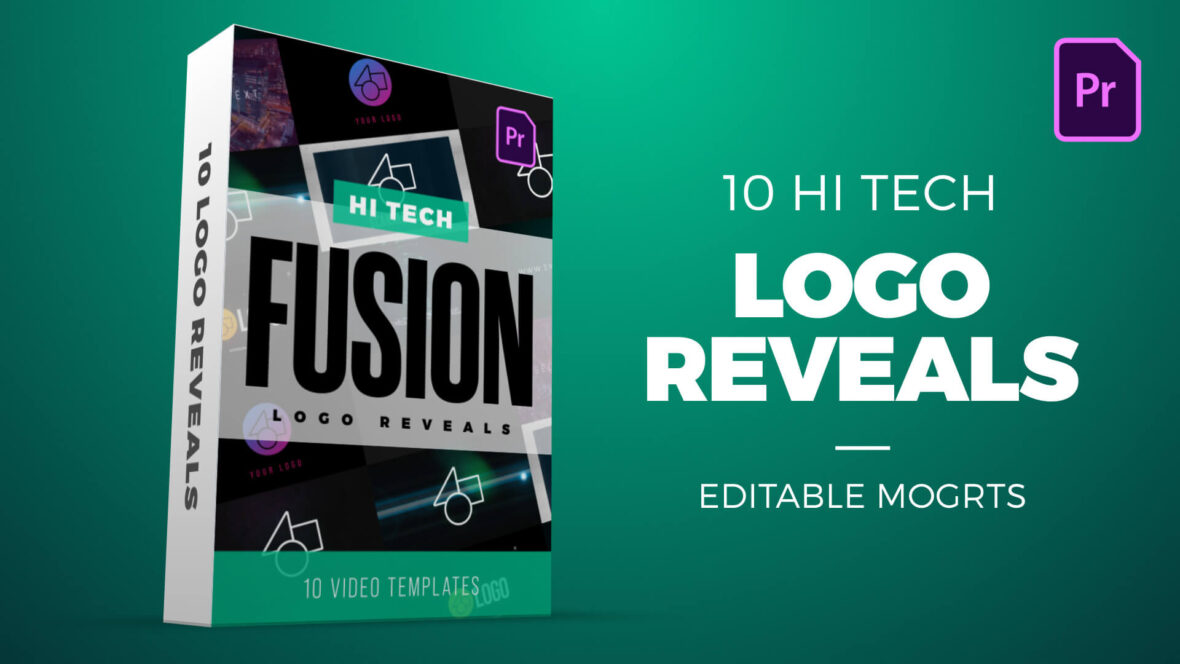
High Energy Logo Reveal Pack for Premiere Pro
Bring energy and impact to your brand with Fusion, a powerful collection of 10 hi-tech logo reveal templates for Adobe Premiere Pro. Featuring themes of neon, electricity, glitch effects, light beams, and particles, these MOGRT files are fully editable and easy to customize.
Perfect for creating dynamic intros, presentations, promos, and YouTube branding, Fusion gives your logo a bold and modern edge. Whether you’re working on technology, science, gaming, or creative projects, these futuristic reveals deliver professional results with just a few clicks.
This pack includes the following MOGRT templates:
- Twisting Particle Logo Reveal
- Electric Lightning Storm Logo Reveal
- Glitchy Hologram Logo Reveal
- Neon Energy Zoom Logo Reveal
- Digital Glitch Logo And Text
- Digital System Glitch Logo Reveal
- Optical Scanner Logo Reveal
- Silhouette Light Beam Logo Reveal
- Fizzing Particle Dissolve Logo Reveal
- Electric Energy Logo Reveal
Each file is fully customizable in Adobe Premiere Pro, allowing you to quickly add your logo, adjust colors, and create a powerful intro that makes your brand stand out.
Software Requirements
These are Motion Graphics Templates for use in Adobe Premiere Pro. For more information about Motion Graphics Templates (MOGRTs) read our blog post and watch our explainer video.
Try Premiere Pro for free!For installation notes see below. Please use one of our FREE MOGRT files to test installation.
Purchase this Pack – $20
Payment for this product is handled via the Gumroad marketplace.
Please use the button below to begin.
Installing Motion Graphics Templates (Premiere Pro 2025)
To install a MOGRT file into Premiere Pro, please use the following updated instructions:1. Extract the Zip file to reveal the .mogrt file.
2. Open Premiere Pro and go to Window > Graphics Templates. Click the Install Motion Graphics Template icon (the small square with a plus sign) located at the top right of the panel. (Note: In versions prior to 2025, this was the Essential Graphics panel).
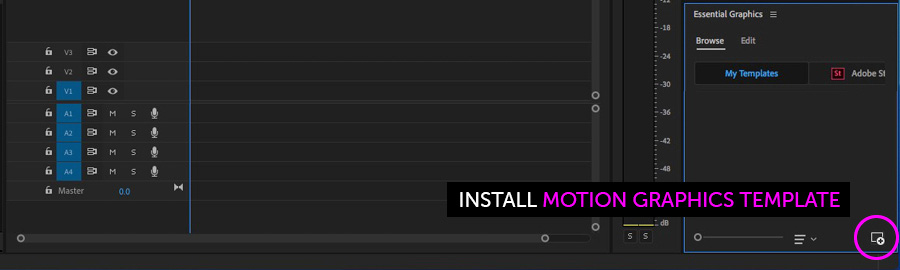
3. Locate the .mogrt file on your drive and choose Open.
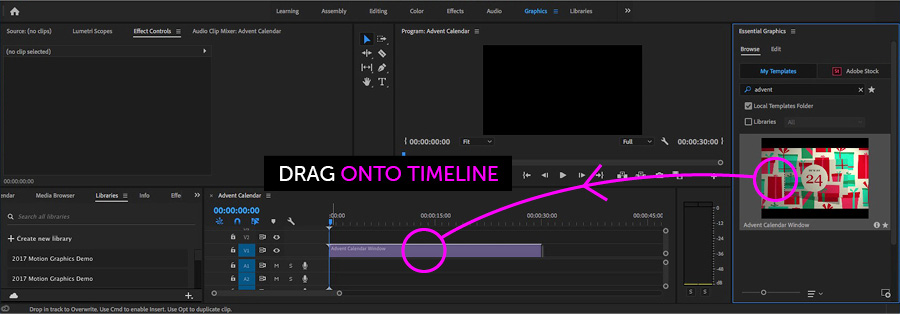
Once installed, drag the template from the Graphics Templates panel onto your timeline to create an instance.
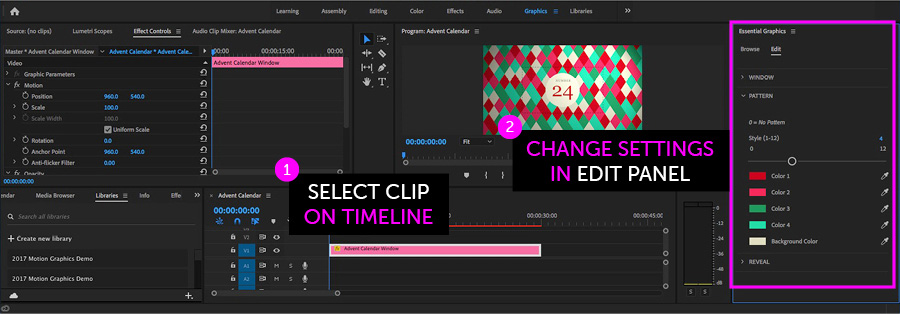
When an instance is selected on your Timeline, use the new Properties panel (previously the Edit tab) to adjust text, colors, and media replacement settings.
Need more help? Watch our full Video Guide on Using MOGRTs in Premiere Pro 2025.
Adobe Stock Search
Please use the search form below to find footage and video templates directly from Adobe Stock.
Great Value Packs
Popular Products
Sponsored Resources